
Guides
Prism Siege: movement first, upgrades next
Find your footing in Zarocer’s geometric survival game. Learn the controls, build useful upgrade combinations and resume your run.
October 8, 2026 · ZarocerRead guide
Understand what a favorite saves, how Continue Playing works and why game progress stays with your browser.
By Zarocer · October 8, 2026 · 2 min readUse the bookmark button on a game page to add it to Favorites. The header bookmark and footer Favorites link open that collection. These choices are stored in your current browser without requiring a sign-in.
Saving a favorite does not save a game’s internal state. Game progress belongs to the game itself. Look for its own save, continue or resume controls.
The Home carousel links to games you have opened for play. It provides a way back to the game page; it does not guarantee that every game supports resuming a match. Check the game’s instructions and its own menu for that capability.
Local saves are associated with the browser and site where you played. Moving to another device, browser or portal does not automatically transfer them. Use Zarocer.com consistently when returning to your games.
Private browsing, blocked storage and clearing site data can affect persistence. Do not treat local saves as a cloud backup. Zarocer account sync, XP and portal-wide awards are not connected yet.
In Prism Siege, return to the menu and choose Continue run after reloading. Circle TD shows Continue match when it has a saved defense. Other games have their own supported behaviors, so read their game pages rather than assuming the same option exists everywhere.
Find your footing in Zarocer’s geometric survival game. Learn the controls, build useful upgrade combinations and resume your run.
October 8, 2026 · ZarocerRead guide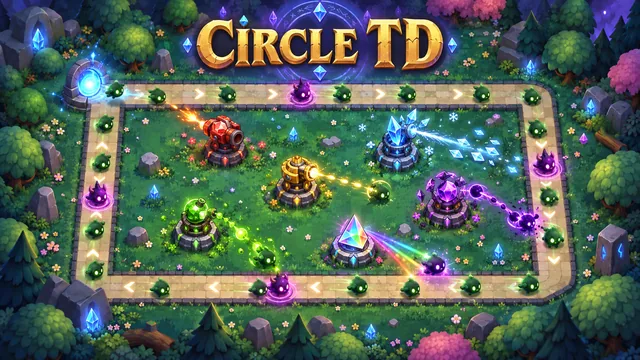
A practical first stop before defending the Circle: explore the native guide, choose your mode and return to a saved match.
October 8, 2026 · ZarocerRead guideUse the game’s supported devices, touch controls and screen orientation to make your next mobile session more comfortable.
October 8, 2026 · ZarocerRead guide